 Control
Control for Mac
On the Mac you want to reach
It sits in the menu bar and shares that Mac’s screen, sound and keyboard. Open the download on that Mac — not on your phone.
Download for MaciPhone · iPad · Mac · Apple Vision Pro
A live, full-resolution window onto your own Mac, with a real keyboard, trackpad and sound. Free on your own Wi‑Fi, forever — and from anywhere with Remote.
No account · Encrypted end to end · No analytics

The Mac shares its screen; your device is the window you look through. One without the other does nothing.
On the Mac you want to reach
It sits in the menu bar and shares that Mac’s screen, sound and keyboard. Open the download on that Mac — not on your phone.
Download for MacOn the device you look at
The window you tap, type and scroll in — iPhone, iPad, Vision Pro, or a different Mac. On public TestFlight until the App Store listing is live, and Remote is free during the beta.
Get it on TestFlightTestFlight is Apple’s official beta app: install it first if you don’t have it, then open the invite on the device you’ll use as the window. Control for Mac isn’t on the Mac App Store, because screen capture and keyboard control need entitlements the store’s sandbox doesn’t allow.
The Mac, rebuilt for the device in your hand — a trackpad and every key on the glass, your voice for typing, and its sound with it.
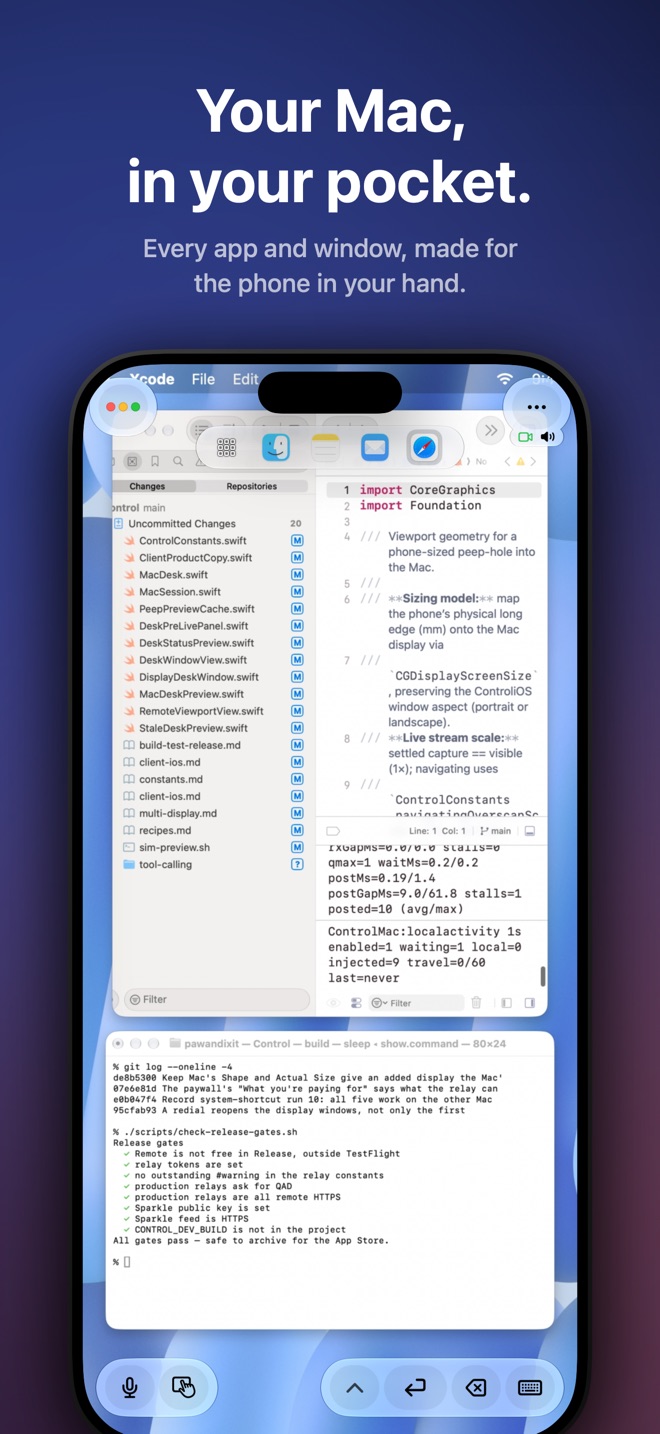
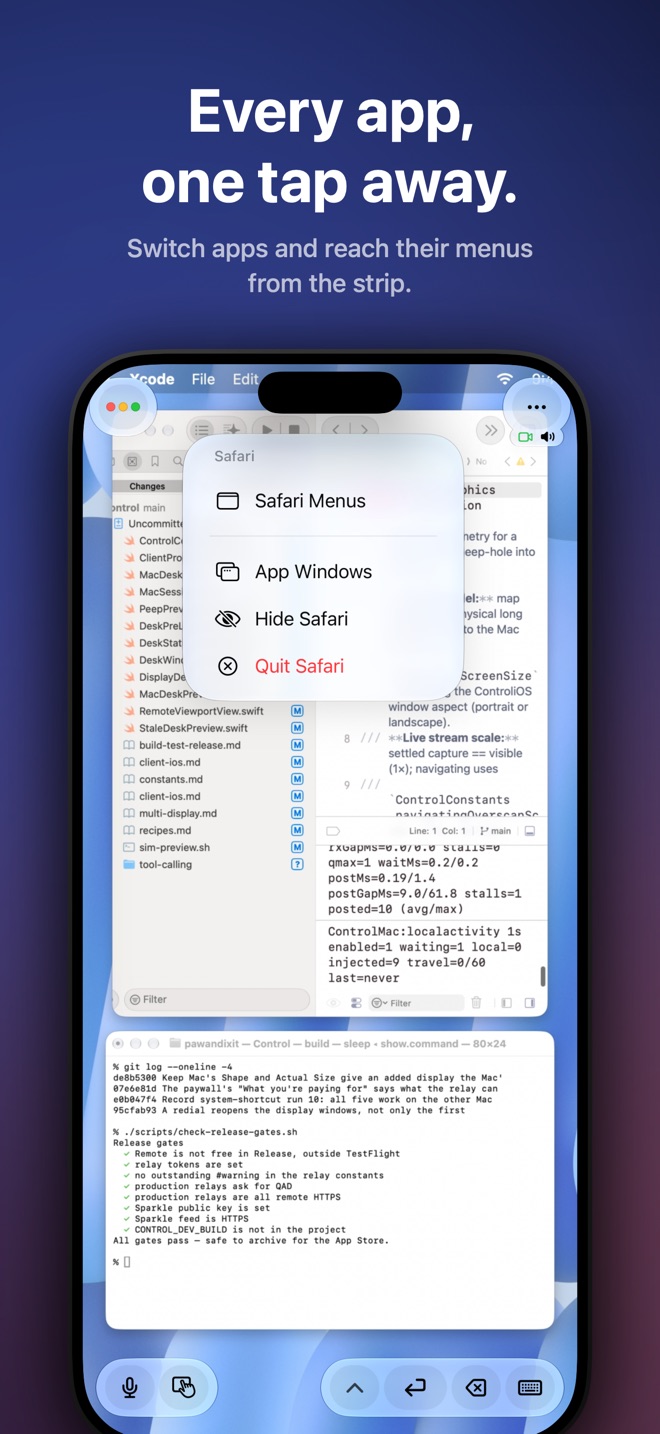
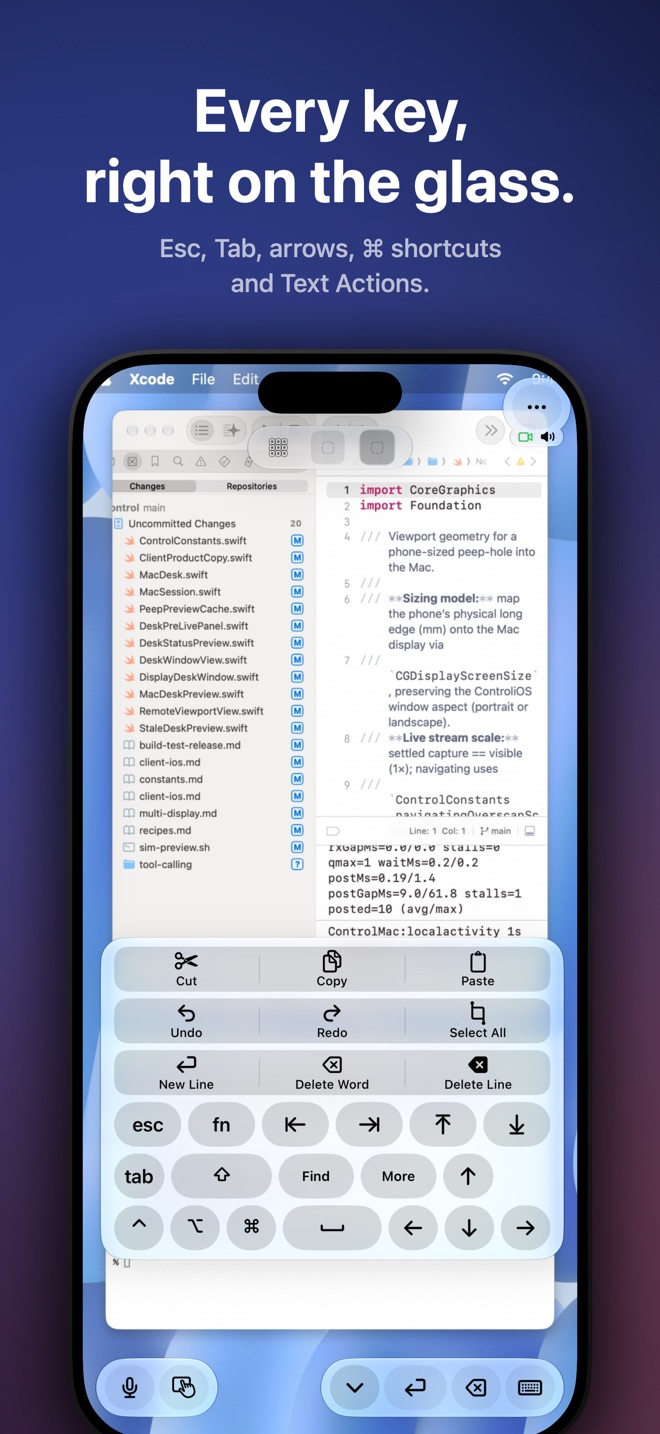
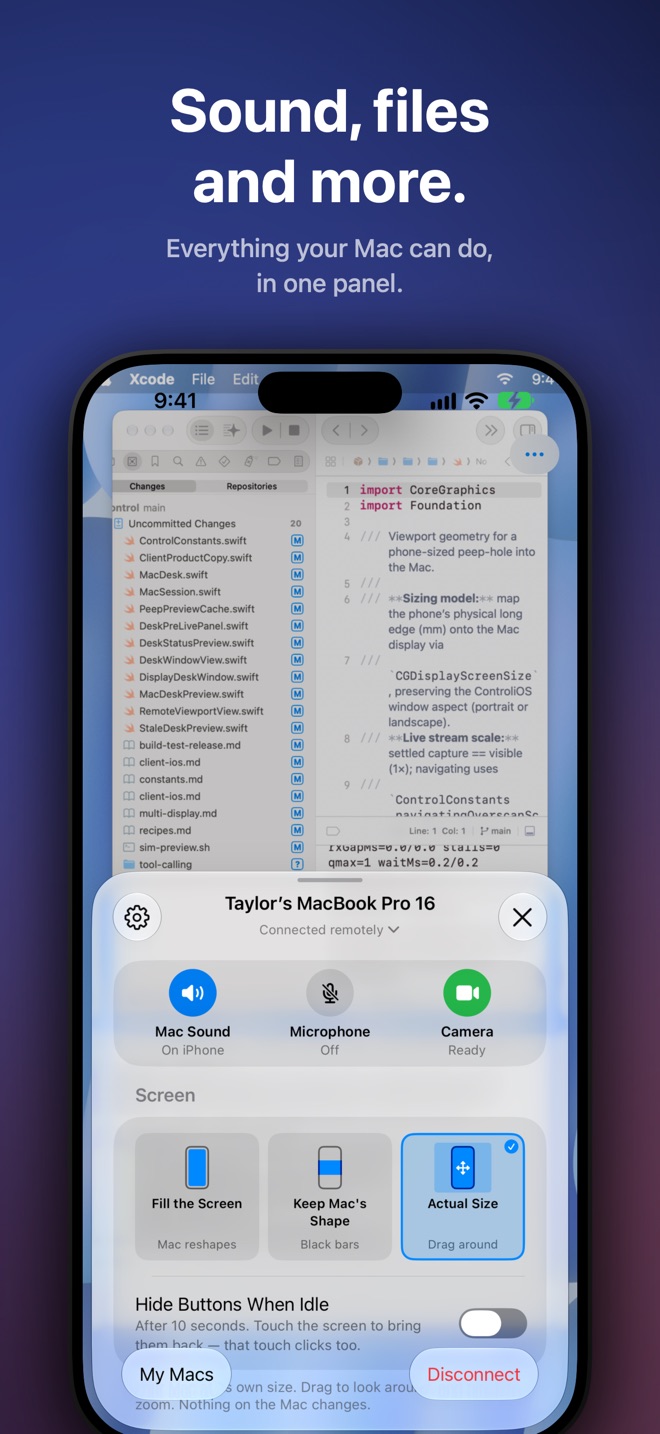
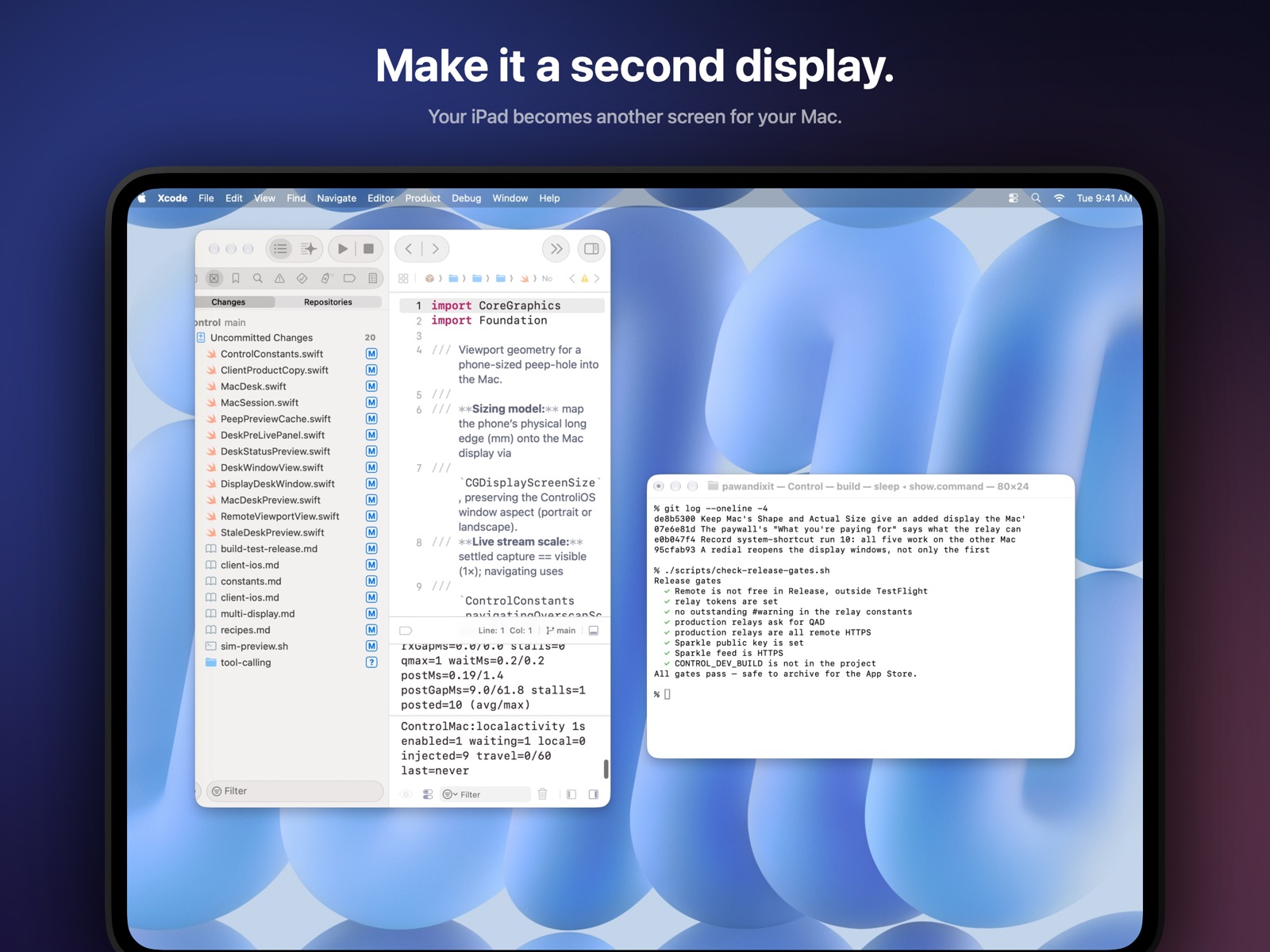
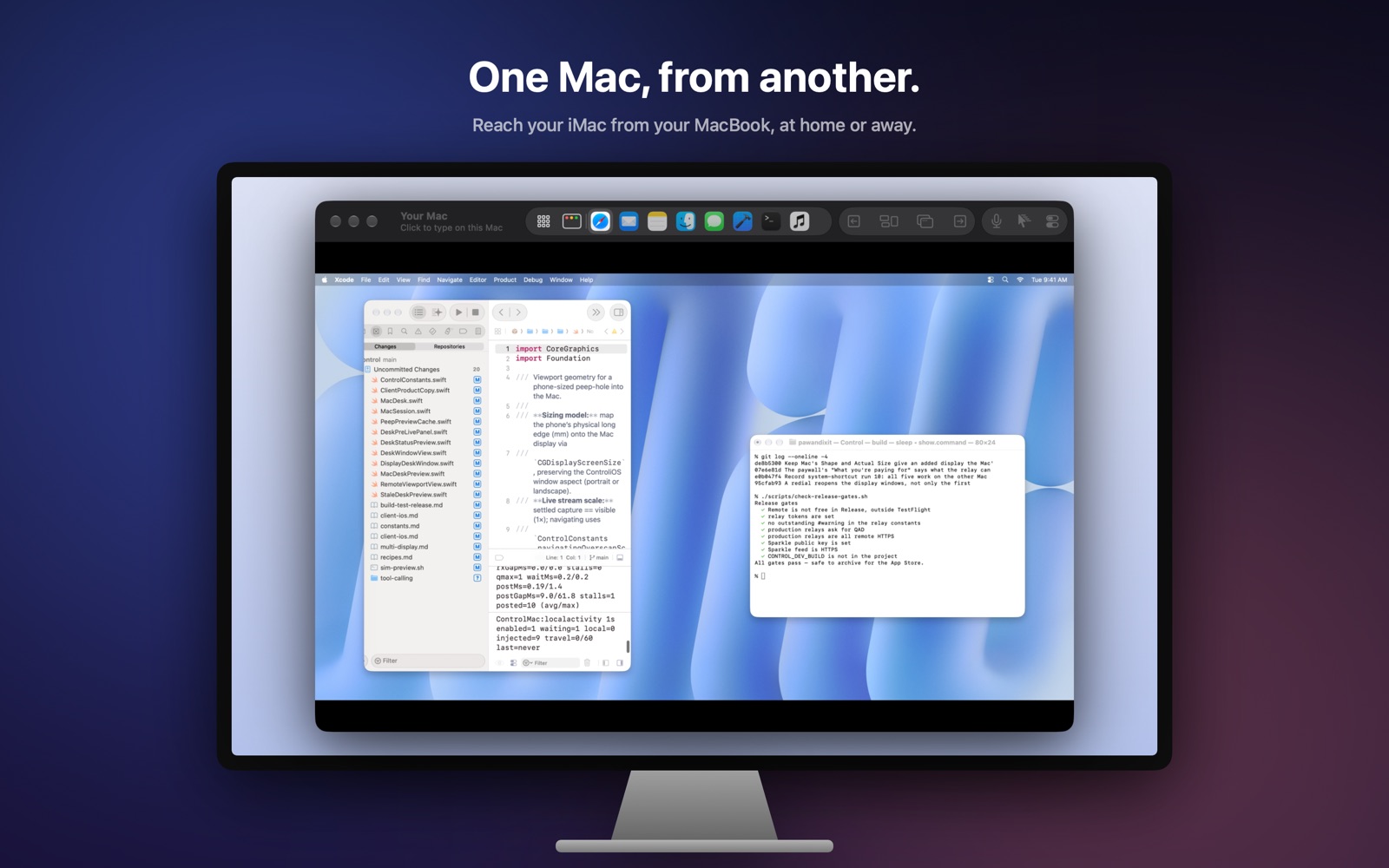
Tap to click and drag with a finger, or bring a keyboard, mouse or trackpad. Trackpad Mode turns the glass into a Mac trackpad.
Your Mac reshapes its screen to fit your iPhone or iPad, so nothing is letterboxed. Keep Mac’s Shape leaves it as it is.
Make your iPhone or iPad an extra display for the Mac — a real second screen you drag windows onto, not a mirror.
Hear the Mac on your device. Keep Mac Silent keeps its own speakers quiet.
Lend the Mac your device’s microphone and camera. They show up there as Control Microphone and Control Camera, for calls and recordings.
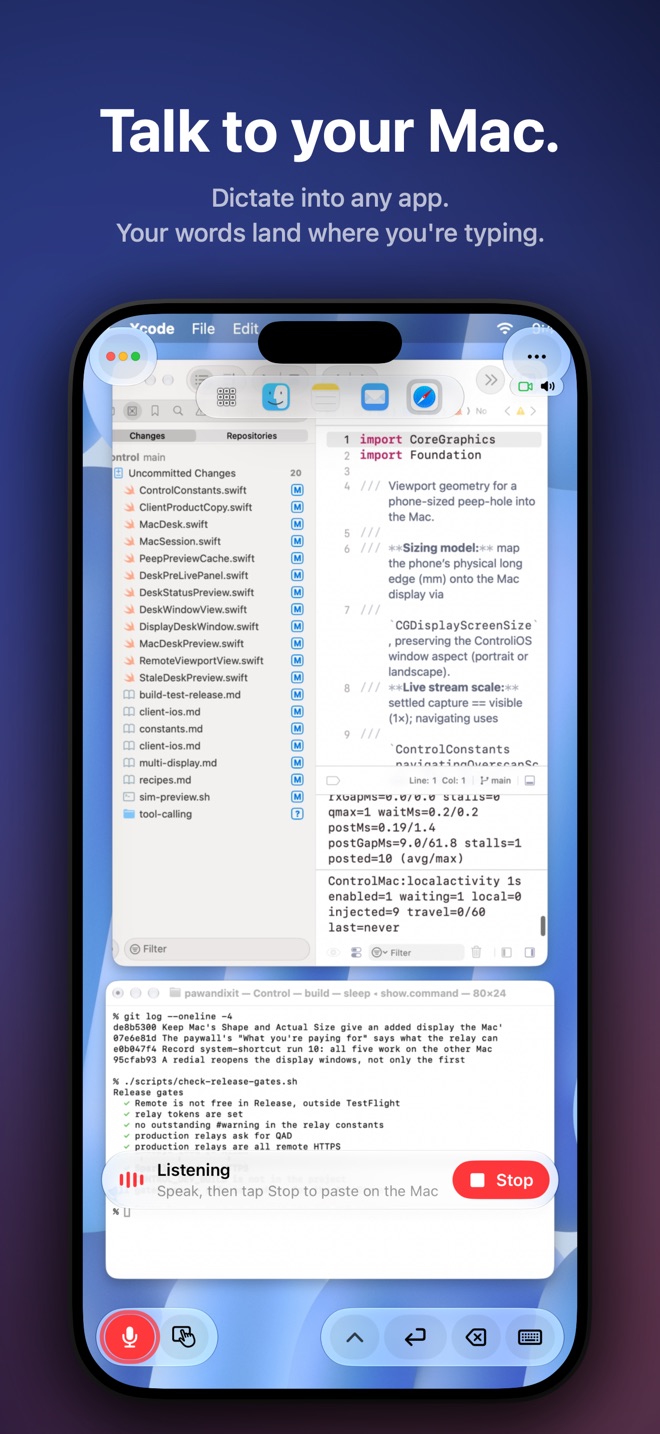
Speak, or write by hand, and it’s typed into whatever is in front on the Mac.
Send photos, files and your clipboard across — from Control, or any app’s Share sheet — and bring the file you selected on the Mac back.
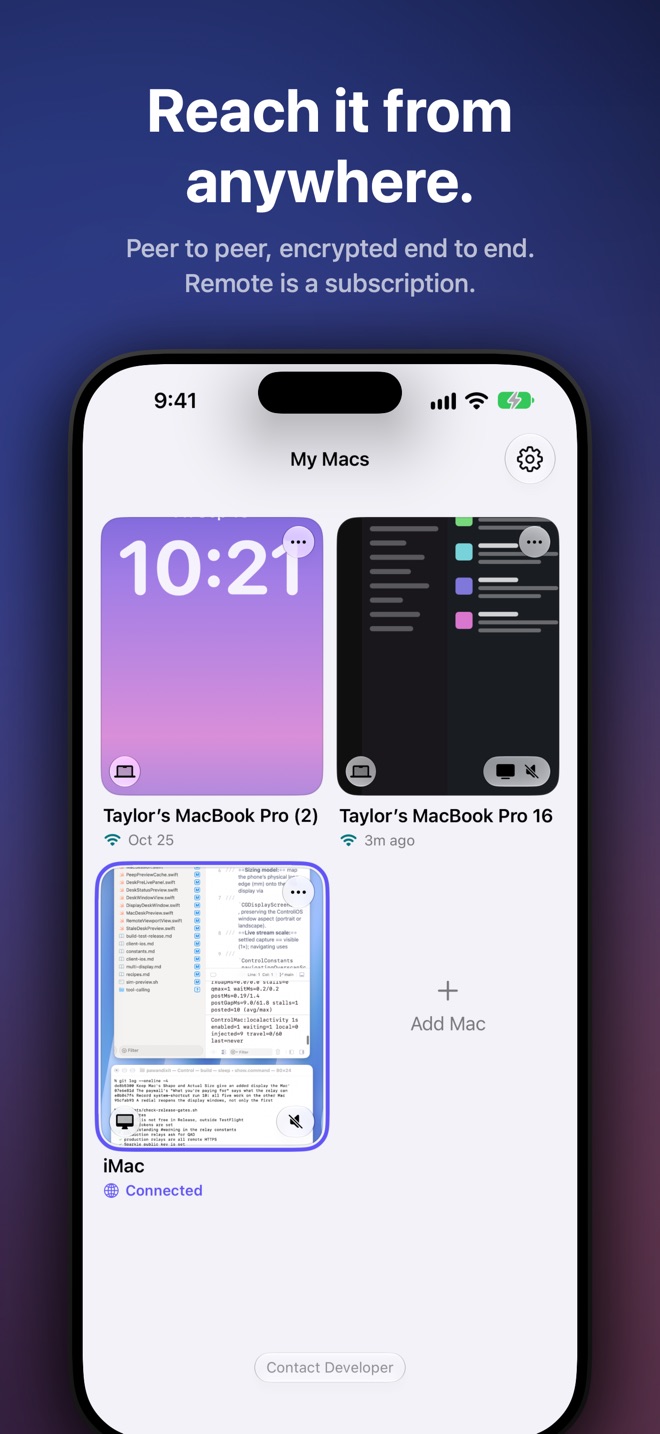
Pair every Mac you use, and switch between them from inside a session without hanging up.
Keep the Mac’s own display dark while you work on it from somewhere else.
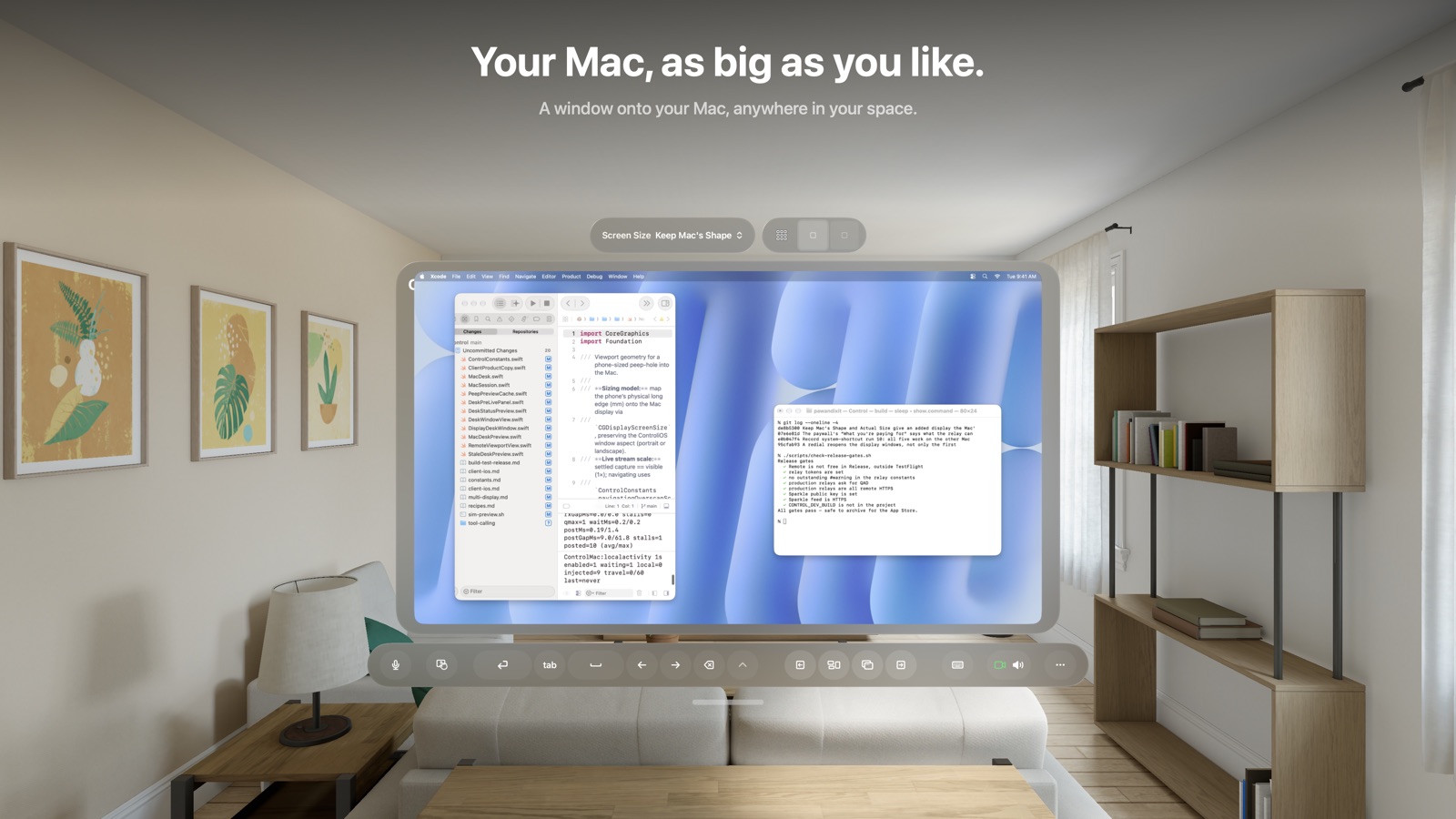
Put your Mac’s desk in the room with you — as wide as Ultrawide.
Unlock your Mac from your device. The password stays in your device’s Keychain and is typed only at the Mac’s lock screen.
The Mac’s notifications on your iPhone or iPad, sealed so only your devices can read them.
You pair a device once with a code your Mac shows. Your Mac keeps its own list of what it trusts, and you can remove anything from it at any time.
Your screen, sound and typing travel only between your devices. When a connection goes through our relay, it forwards bytes it cannot read, and logs none of it.
No tracking, no advertising, no telemetry. The privacy policy lists everything that ever leaves your devices, and where it goes.
You only ever pay for the one part that costs money to run.
Free, forever
On your own Wi‑Fi, Control costs nothing. Not a trial, not a limited tier — your Mac and your device talk directly, encrypted end to end.
Optional subscription
Reach your Mac from anywhere. Your devices connect directly when the network allows; when they can’t, Control’s own relay servers carry the connection — encrypted data they cannot read, and no logs. One subscription covers iPhone, iPad, Mac and Vision Pro. While Control is on TestFlight, subscribing costs nothing: Apple doesn’t charge for purchases made in TestFlight.
Control for Mac on the machine you want to reach. Control (TestFlight) on the phone, tablet, Vision Pro or other Mac you’ll look at.
On the Mac, choose Add a Device. Scan its code with your device, or copy the code and paste it into Add Mac. On the same Wi‑Fi you can also pick the Mac by name and match six digits.
On your own Wi‑Fi, tap your Mac — free forever. Away from it, tap it the same way and Control connects remotely. Control for Mac has to be running in the menu bar either way.
Because they are two different jobs. Control for Mac goes on the Mac you want to reach: it captures that screen and injects your clicks and keys. Control goes on the device you hold: it is the window you look at.
Installing only the phone app gives you nothing to connect to. Installing only the Mac host gives you a menu-bar icon and no window. A second Mac you watch from still needs the TestFlight app — Control for Mac is the host, not a viewer.
The window app is not on the App Store yet. The public TestFlight link is the current way to install Control on iPhone, iPad, another Mac, or Vision Pro. You will be asked to install Apple’s TestFlight app first; that is normal.
On your own Wi‑Fi, yes — forever, with nothing held back. That is the whole app, not a trial.
Reaching your Mac over the internet is a subscription, because it is the only part with a running cost: when your devices can’t reach each other directly, Control’s own relay servers carry the connection. You are never asked to pay to use Control at home.
While Control is in its TestFlight beta, Remote is free too: when Control asks you to subscribe, go ahead — Apple doesn’t charge for purchases made in TestFlight.
Capturing a screen and moving a cursor need entitlements the App Store sandbox doesn’t allow. There is no version of Control that works and also fits those rules.
It is signed with an Apple Developer ID and notarized by Apple — the same malware check the App Store runs — and it checks for updates once a day and offers each new version.
No. Everything is encrypted end to end between your own devices. When a connection goes through our relay, the relay forwards bytes it cannot read.
There is no account, so there is nothing to attach a screen to even in principle. The apps collect no analytics.
Screen Recording is how Control sees the screen it sends you. Accessibility is how your taps and keystrokes become real clicks and keys on the Mac. Without the first there is no picture; without the second you can only watch.
macOS asks for both once, and Control walks you through them. It also asks once to let Control find devices on your network.
Other features ask only when you turn them on: Mac Sound needs Audio Recording, the microphone an administrator password, the camera a system extension you allow in System Settings, and Forward Notifications needs Full Disk Access.
No, and there isn’t one to make. You pair a device by scanning or pasting a code your Mac shows — or, on the same Wi‑Fi, by matching six digits on both screens and clicking Accept on the Mac. Your Mac keeps its own list of what it trusts, and you can remove anything from it at any time.
On the same Wi‑Fi, usually yes — connecting is what wakes it, as long as the Mac is plugged in, Wake for network access is on (Control’s menu bar tells you if it isn’t), and something else on the network stays awake to answer for it: an Apple TV, a HomePod, or another Mac. If your Mac goes to sleep while you’re connected, your device says so and shows Wake.
From somewhere else, no. Waking a sleeping Mac over the internet needs either a port forwarded on your router or a second machine left running at home, and Control is built to need neither. Turn on Keep Active in Control’s menu bar to stop the Mac sleeping on its own — closing a laptop’s lid, or choosing Sleep, still sleeps it.
A Mac with Apple silicon (M1 or later) running macOS 15 or later, with Control for Mac installed. And Control on what you look at: an iPhone or iPad with iOS 26 or later, an Apple Vision Pro with visionOS 26 or later, or another Mac with Apple silicon on macOS 15 or later.
The Mac host is free. The window app is one TestFlight beta across those devices until it ships on the App Store.
If you set up the microphone or the camera, remove them first: open Control’s Settings → Sound and Camera and choose Remove Microphone Driver… and Remove Camera Extension… — turning them off isn’t enough. Then quit Control from the menu bar and drag it to the Trash. Its settings and logs stay in your Library folder until you delete them.
Send the logs — they say far more than a description can. While you’re connected to the Mac, open Controls (⋯) and choose Report a Problem: it collects the logs from both your device and the Mac and attaches them together.
When you can’t connect, use Settings → Help → Report a Problem on your device (on a Mac: Help → Report a Problem), and on the Mac you connect to, Control in the menu bar → Contact Developer → Report a Problem… — each attaches its own logs. Nothing is sent until you send the mail.
Ideas, questions, something that didn’t work — write, and a person reads it.